


I changed my WordPress password. Then I added two-factor authentication (2FA), so signing in would also require a code from my phone. Surely that would be enough to keep unauthorized users out?
The plugin I installed was Two Factor, a free WordPress.org community project with more than 100,000 active installations as of October 2026. Paired with Google Authenticator, it lets me confirm a login with a six-digit code generated on my smartphone.
But while checking the plugin’s development history, I found something unexpected: in September 2026, Two Factor itself received a security fix involving a way to bypass its authentication requirements under specific conditions.
Adding a second lock to the front door is sensible. But what if an attacker can enter through a different door entirely? WordPress has more than one way in.
Google Authenticator Makes WordPress 2FA Surprisingly Easy
WordPress two-factor authentication adds a second verification step after the password. The Two Factor plugin is one of the options mentioned in WordPress’s official security documentation.
Setting it up is straightforward. Install and activate the plugin, then go to Users → Profile in the WordPress dashboard. Under Two-Factor Options, enable the authenticator app method and scan the displayed QR code with your smartphone.
Google Authenticator is one compatible choice. Once the setup is verified and saved, the app generates six-digit codes for your WordPress account. You can check that everything works by signing in through a separate browser session.
One particularly useful feature is that Google Authenticator can generate codes without an internet connection or mobile signal. Google confirms this in its official help documentation. There is no need to wait for an email, and the same app can manage codes for multiple websites.
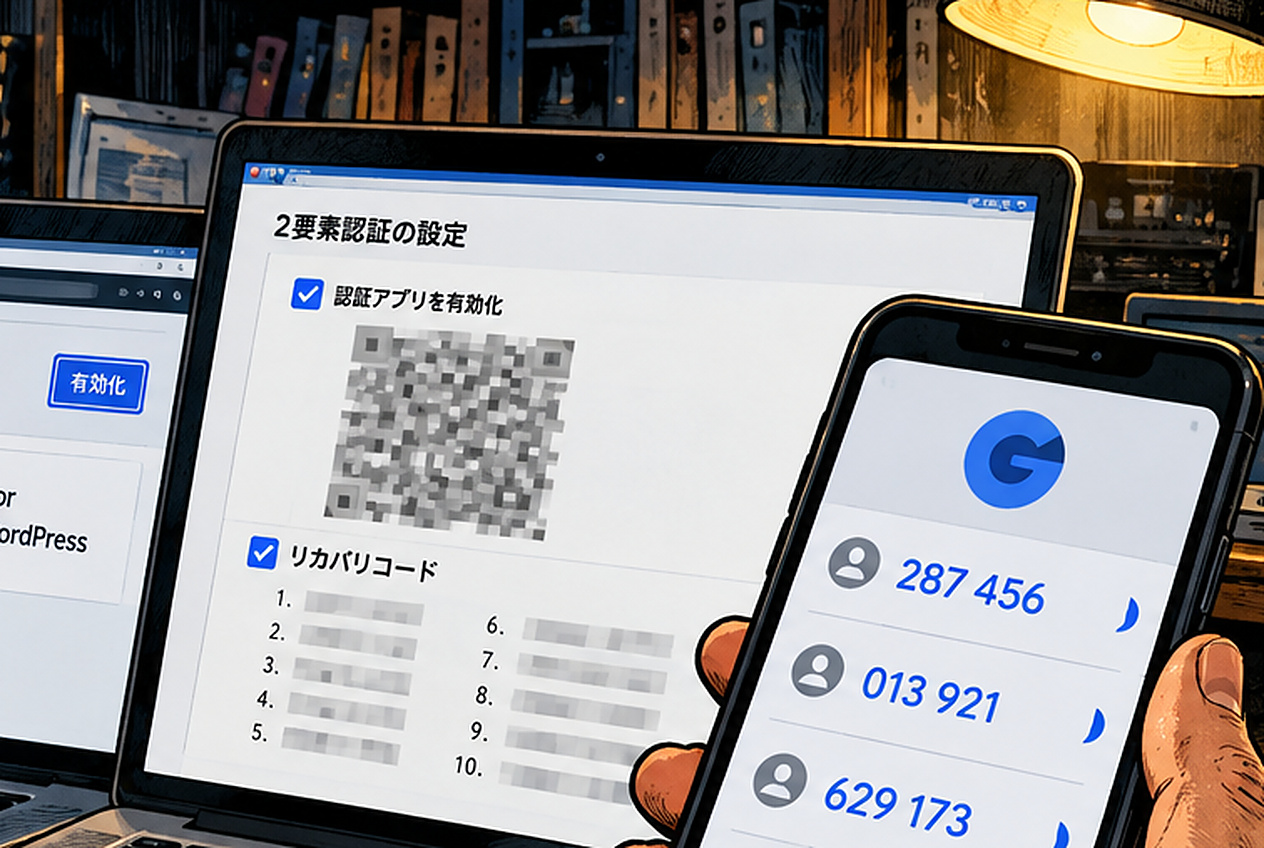
Illustration reconstructed from the editor’s setup experience. The QR code, verification codes, and other details are not actual authentication credentials.
There is one detail worth checking: activating the plugin does not automatically complete 2FA setup for every WordPress user. Each administrator needs to configure their own account.
The plugin also lets you generate 10 single-use recovery codes. These provide emergency access if your phone is lost or unavailable. Store them somewhere secure, preferably separately from your usual login credentials.
Six Digits, One Million Possibilities. How Hard Is a Code to Guess?
Google Authenticator uses a system called TOTP, or Time-Based One-Time Password. It generates codes from a shared secret key and the current time. A standard configuration changes the code approximately every 30 seconds.
Here’s a simple calculation.
A six-digit numerical code can range from 000000 to 999999. That gives us 1,000,000 possible combinations.
Suppose exactly one code is accepted, and an attacker gets just one completely random guess. The probability of selecting the correct number is:
1 ÷ 1,000,000 × 100 = 0.0001%
In other words, a one-in-a-million chance under those assumptions.
That does not mean WordPress has a 99.9999% chance of resisting an attack. Real authentication systems may accept codes from adjacent time windows, and security also depends on rate limiting, credential protection, and other controls.
Still, requiring a second code makes a stolen password much less useful by itself. The catch is that one-time codes are not fully phishing-resistant. If someone enters both their password and a valid code into a convincing fake login page, an attacker may be able to use them before the code expires.
Even the Two Factor Plugin Had an Authentication Flaw
While examining the Two Factor changelog, I found a particularly revealing entry dated September 25, 2026, in version 0.17.0.
The developers had fixed an issue involving authentication through WordPress’s REST API and XML-RPC interfaces. Under specific conditions, a regular password could bypass the intended two-factor requirement.
The underlying GitHub record explains how it could happen. When several authentication attempts were handled within the same request, a successful application-password login for one user could incorrectly affect the authentication check for another user.
In particular, XML-RPC’s ability to process multiple calls in a single request made this distinction important. The fix ensured that the application-password exception applied only to the user who had actually authenticated through that method.
This was not a universal bypass of the normal WordPress dashboard login screen. Nor did I find verified evidence that this specific flaw had caused an actual personal-data breach.
There was another issue, too. On September 30, 2026, Patchstack publicly documented a denial-of-service vulnerability, CVE-2026-100508, affecting Two Factor versions 0.16.0 and earlier. It carried a CVSS score of 5.3 and was also patched in version 0.17.0.
The authentication flaw and the denial-of-service vulnerability were different problems. Neither should be exaggerated into proof that the plugin was broadly compromised.
But the larger lesson is hard to miss: a plugin designed to improve security still needs security updates of its own. Being distributed under the WordPress.org name does not make software permanently free of defects.
WordPress Has Other Doors Besides the Login Screen
So what can still go wrong after enabling 2FA? It helps to separate three different routes an attacker might exploit.
| Attack route | What two-factor authentication can do |
|---|---|
| Normal WordPress dashboard login | Provides strong additional protection if a password is stolen |
| API authentication credentials | Requires separate credential management and revocation |
| PHP or plugin vulnerabilities | Does not directly repair or block vulnerable code |
WordPress supports Application Passwords, which allow external applications and automated tools to authenticate without using the ordinary interactive login process. These credentials are separate from the main account password and can be revoked individually when no longer needed.
Then there is the software running underneath WordPress. A vulnerability in PHP or a plugin may provide an attack route that does not require anyone to pass through the normal login screen at all.
Two-factor authentication cannot fix vulnerable PHP code, repair an insecure plugin, or substitute for properly maintaining the server.
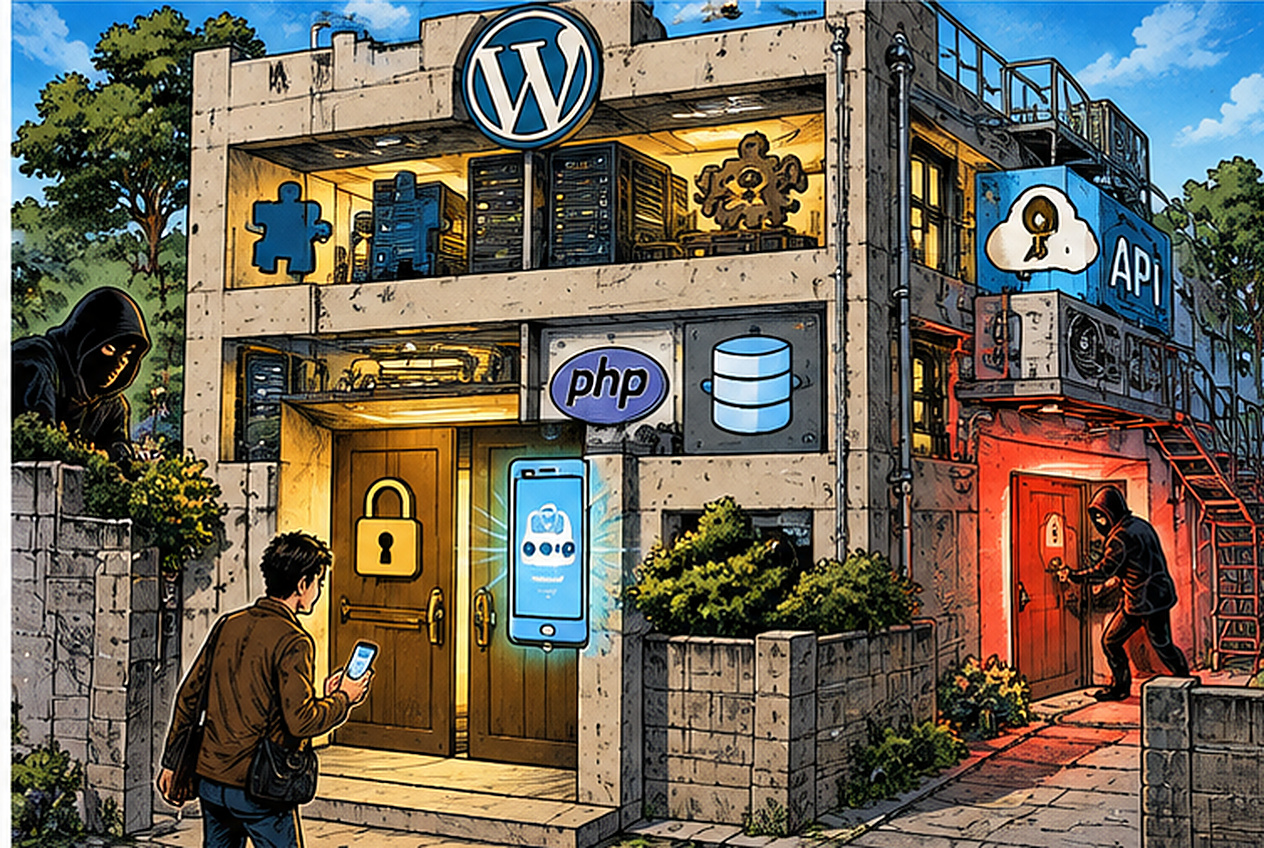
Conceptual illustration comparing different WordPress security boundaries to entrances in a building. It does not depict a real intrusion or the literal architecture of WordPress.
Here’s another interesting mismatch. The Two Factor plugin’s official listing specifies PHP 7.4 or higher as its minimum PHP requirement. Yet PHP 7.4 reached the end of official security support on November 28, 2022.
Meeting a plugin’s minimum technical requirements is not the same as running a securely maintained server.
That distinction is easy to overlook when a WordPress dashboard shows everything working normally.
What Should WordPress Administrators Actually Do?
My recommendation is to enable two-factor authentication rather than avoid it because of these limitations. For ordinary WordPress administrators, an authenticator app such as Google Authenticator offers a practical balance of stronger login protection and convenience.
But treat it as one layer, not the entire security strategy.
Make sure every administrator has configured 2FA. Keep recovery codes somewhere safe. Review and revoke unnecessary application passwords. Update PHP, WordPress core, themes, and plugins, and maintain backups that can actually be restored.
For Two Factor specifically, check both the installed plugin version and compatibility with your WordPress installation, and apply available security fixes.
Finally, never publish your authenticator setup QR code, shared secret, or recovery codes. Those are sensitive security credentials, not ordinary screenshots to share online.
Two-factor authentication will not stop every WordPress attack. But it makes password theft substantially less useful to an attacker, and that alone makes it worth adopting.
Editor’s Note
After actually setting up Google Authenticator, my first reaction was simple: why didn’t I do this earlier? Open the app, read the numbers, type them in. Hardly an ordeal.
What bothered me came later, when I started reading the plugin’s development records. Even security software had needed a fix involving an authentication route outside the familiar login screen.
It’s rather like installing two impressive locks on the front door of an old building, then remembering there is a service entrance around the back. The locks are still worth having. But somebody has to check the rest of the building.
And that somebody, unfortunately, is usually the person sitting in front of the WordPress dashboard. Installing a security plugin is easy. Remembering to maintain the whole system is the less glamorous part.
Terms That May Need a Quick Explanation
- TOTP (Time-Based One-Time Password)
- An authentication method that generates short-lived codes using a shared secret key and the current time.
- REST API and XML-RPC
- Interfaces that let external applications and software communicate with WordPress. They support authentication routes separate from the ordinary dashboard login screen.
References
- WordPress.org — Two Factor: Official Plugin Page and Changelog
- WordPress Developer Resources — Two Step Authentication
- WordPress/two-factor on GitHub — Application Password Authentication Fix, Pull Request #989 (September 2026)
- Patchstack — Two Factor Denial-of-Service Vulnerability (CVE-2026-100508)
- Google Account Help — Get Verification Codes with Google Authenticator
- RFC 6238 — TOTP: Time-Based One-Time Password Algorithm
- WordPress Developer Resources — Application Passwords
- PHP Official Documentation — Unsupported PHP Branches
- NIST SP 800-63B — Digital Identity Guidelines: Authentication and Authenticator Management