

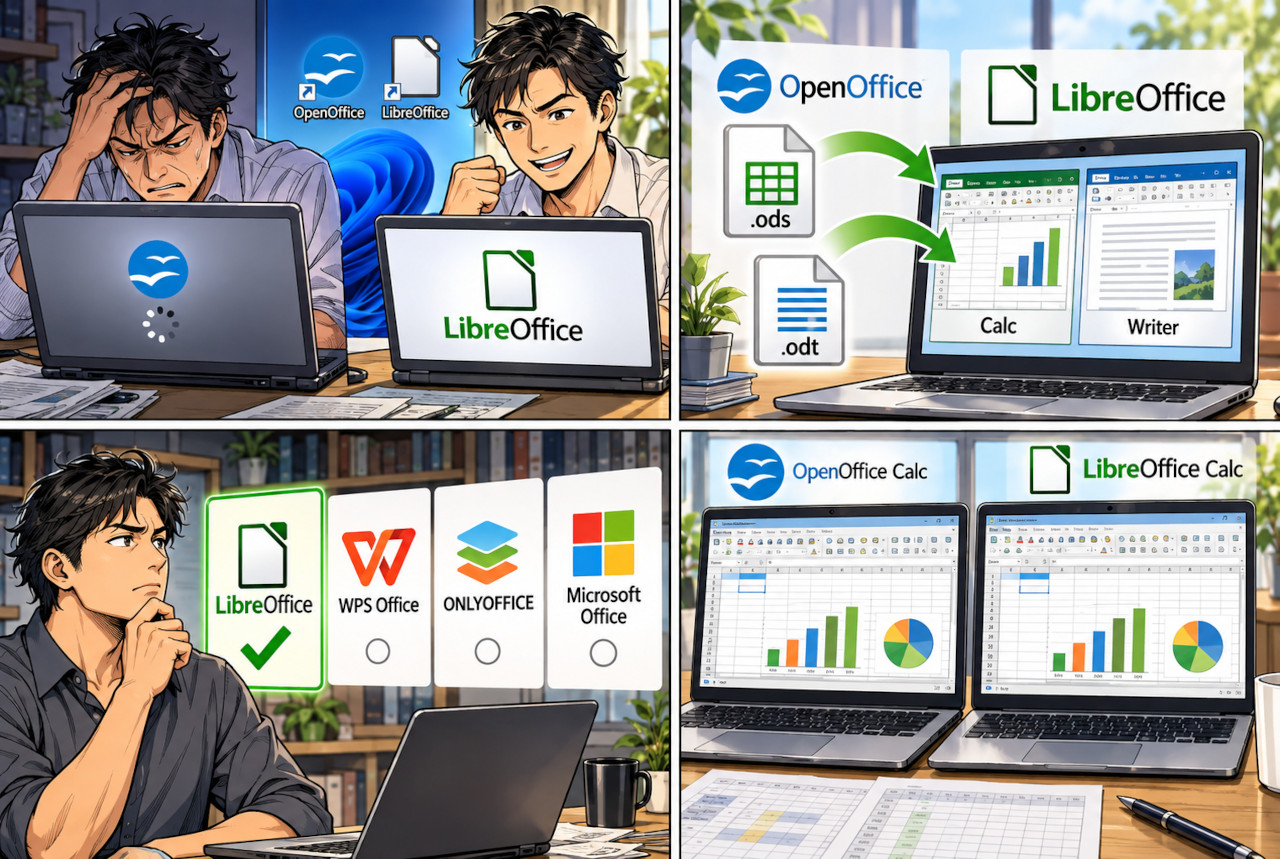
OpenOffice had been part of my normal PC setup for years. Then, on Windows 11, it started freezing during ordinary editing. It would launch. It would open the file. Then, somewhere in the middle of the job, it would simply stop responding.
When that happens, the obvious reaction is to blame the PC, a damaged profile, an input method, or some strange Windows setting.
But there is another question worth asking:
At what point does fixing the old software become more trouble than simply switching to something newer?
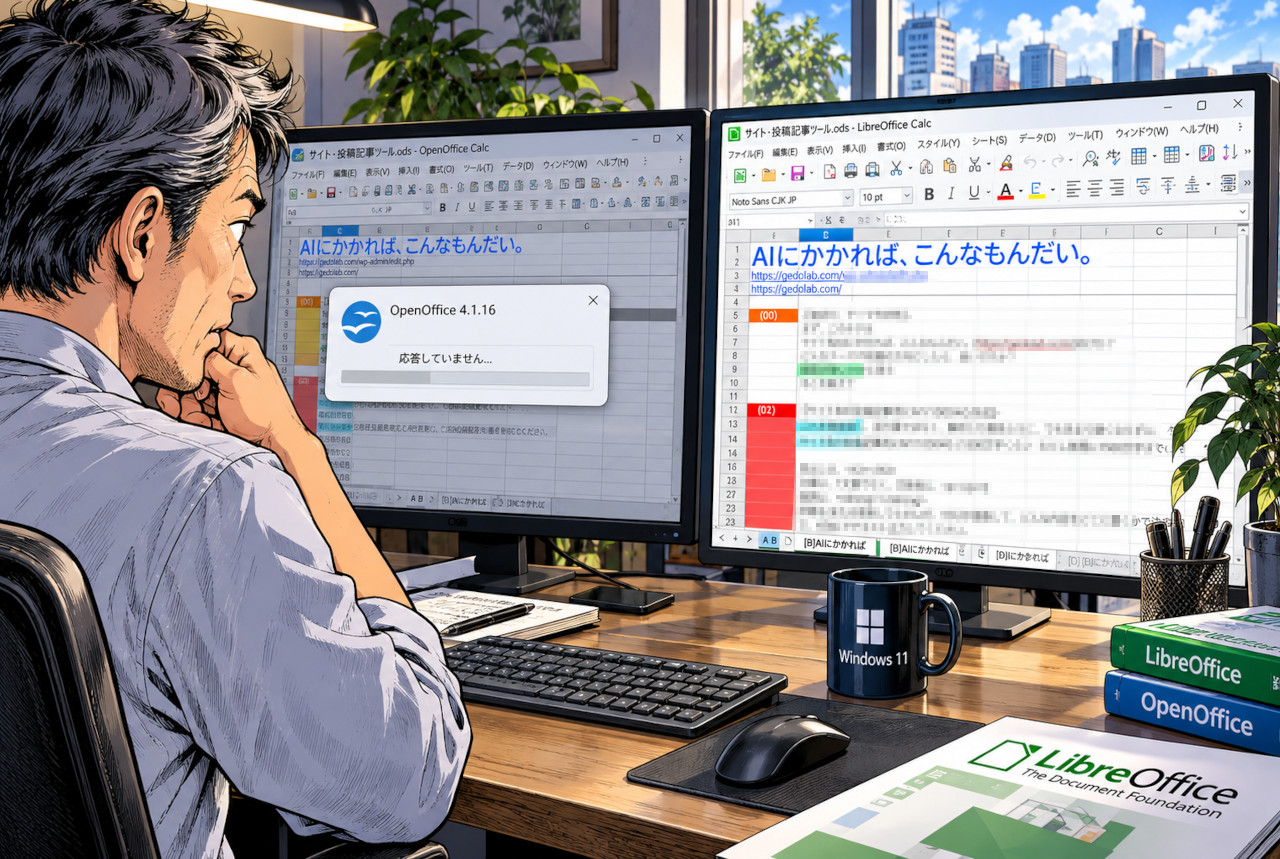 Illustration based on the actual migration test. A freeze on one PC does not mean OpenOffice is incompatible with every Windows 11 system.
OpenOffice is not dead—and Windows 11 is not automatically the problem
First, one point needs to be cleared up. Apache OpenOffice has not disappeared.
Apache OpenOffice 4.1.16 was released in November 2025 as a security and bug-fix release, and the project continues to provide Windows builds. So it would be misleading to say that OpenOffice simply cannot run on Windows 11.
A freeze can come from several places: a damaged user profile, an input method, a particular document, an extension, another resident application, or a graphics-related issue.
In other words, “OpenOffice froze on Windows 11” and “OpenOffice does not support Windows 11” are not the same statement.
Still, there is a practical issue. If I have to keep troubleshooting an older workflow while another free office suite is actively maintained and officially supports Windows 11, changing software starts to look less like surrender and more like basic maintenance.
LibreOffice is a surprisingly easy move for OpenOffice users
The most obvious alternative is LibreOffice.
LibreOffice is a free and open-source office suite with Writer, Calc, Impress and other applications. Its current Windows releases officially support Windows 11.
For an OpenOffice user, the biggest advantage is not the price. It is the file format.
ODS and ODT do not have to be converted first.
An .ods spreadsheet created in OpenOffice Calc can be opened directly in LibreOffice Calc. An .odt text document can likewise be opened directly in Writer.
That matters because ODS and ODT are part of the OpenDocument Format, or ODF, which LibreOffice uses as its native document format. There is no need to convert an entire archive of old files to Excel or Word formats just to change applications.
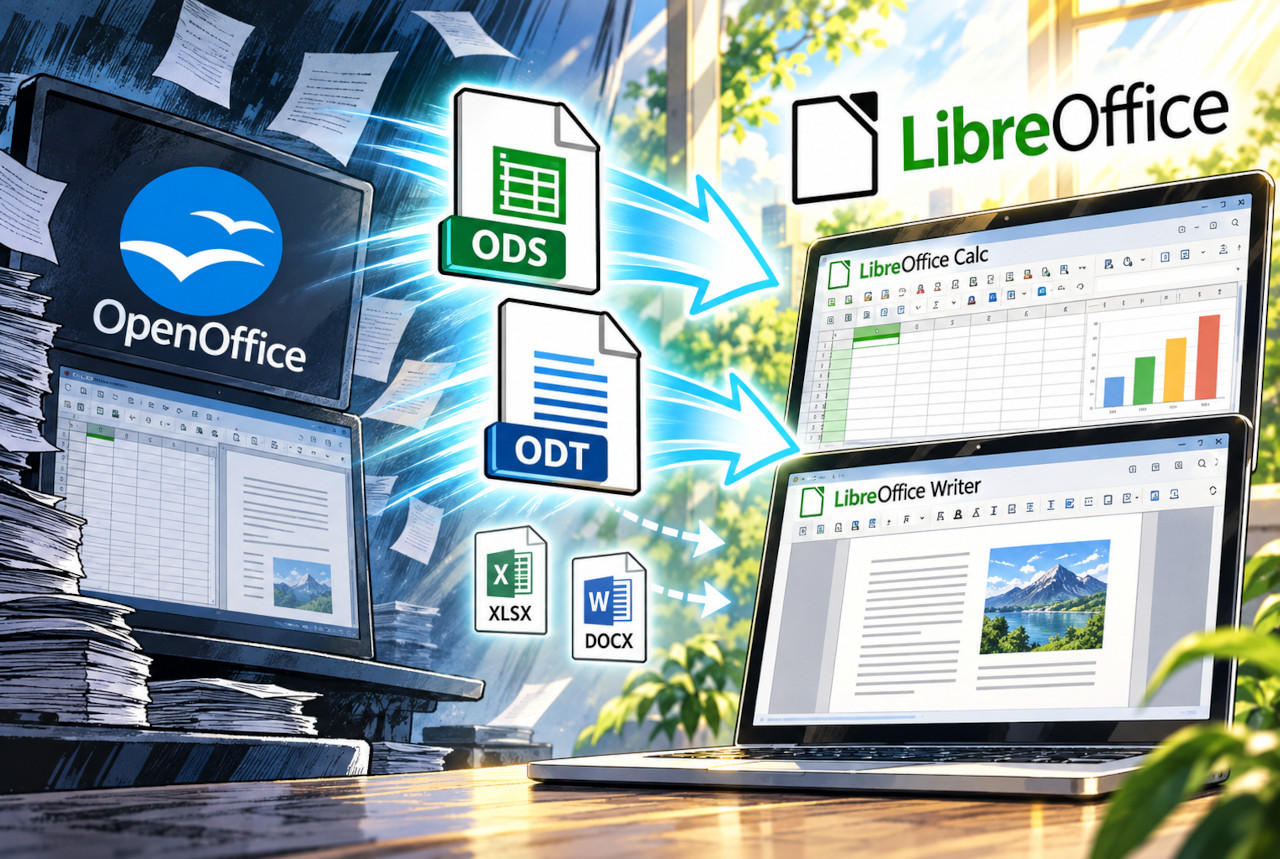 ODS and ODT are OpenDocument formats and can be opened directly in LibreOffice. XLSX and DOCX are also supported.
XLSX, DOCX and PPTX are supported too
Another common concern is Microsoft Office compatibility.
LibreOffice can open and save Microsoft Office formats including DOCX, XLSX and PPTX. Excel spreadsheets can be opened in Calc, Word documents in Writer, and PowerPoint presentations in Impress.
That does not mean perfect compatibility in every possible document.
A normal spreadsheet with formulas, formatting and ordinary charts may transfer without much drama. A heavily customized corporate workbook with complex VBA, unusual fonts, advanced Excel-specific features or carefully tuned page layouts is a different matter.
LibreOffice itself states that VBA support is not complete, even though it covers many common usage patterns.
So there is no reason to pretend that a free office suite replaces Microsoft Office in every professional environment.
But for everyday spreadsheets, written documents, lists, article drafts, household records and ordinary office work, a Microsoft 365 subscription or a paid Office license may simply be more than some users need.
LibreOffice is not the only alternative
LibreOffice is not alone. WPS Office and ONLYOFFICE are also well-known alternatives, particularly for users who want an interface and document workflow closer to Microsoft Office.
For someone coming specifically from OpenOffice, however, LibreOffice has an obvious advantage: OpenDocument files already fit naturally into its world.
The migration feels less like changing document ecosystems and more like changing the application that handles the same documents.
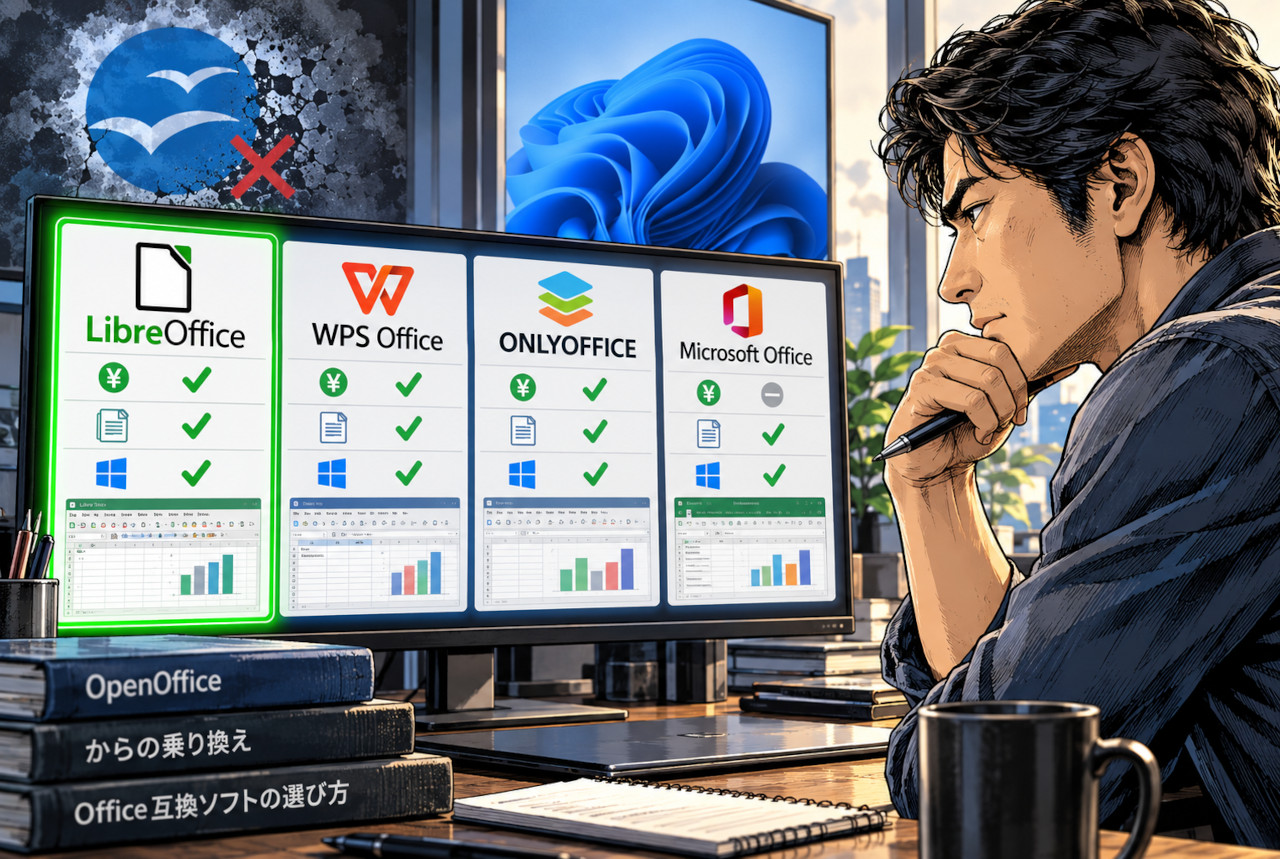 Prices, features and compatibility vary by product, edition and plan. This illustration represents the available choices rather than a literal feature or price comparison.
Opening my real ODS file was almost anticlimactic
The useful test was not a specification sheet. It was one of the ODS files I actually use.
I opened the same spreadsheet that I had been using in OpenOffice Calc with LibreOffice Calc.
For this ordinary spreadsheet, there was no elaborate conversion process. The sheets opened, the colored cells were there, the text was there, and the overall layout remained familiar.
That does not prove that every ODS file on Earth will open perfectly. It does prove something more useful for me: my own working file did not require a migration project.
The process was basically this:
Install LibreOffice alongside OpenOffice, open the ODS file I already use, and see what happens.
If the documents you depend on survive that test, moving your everyday work over becomes much less intimidating.
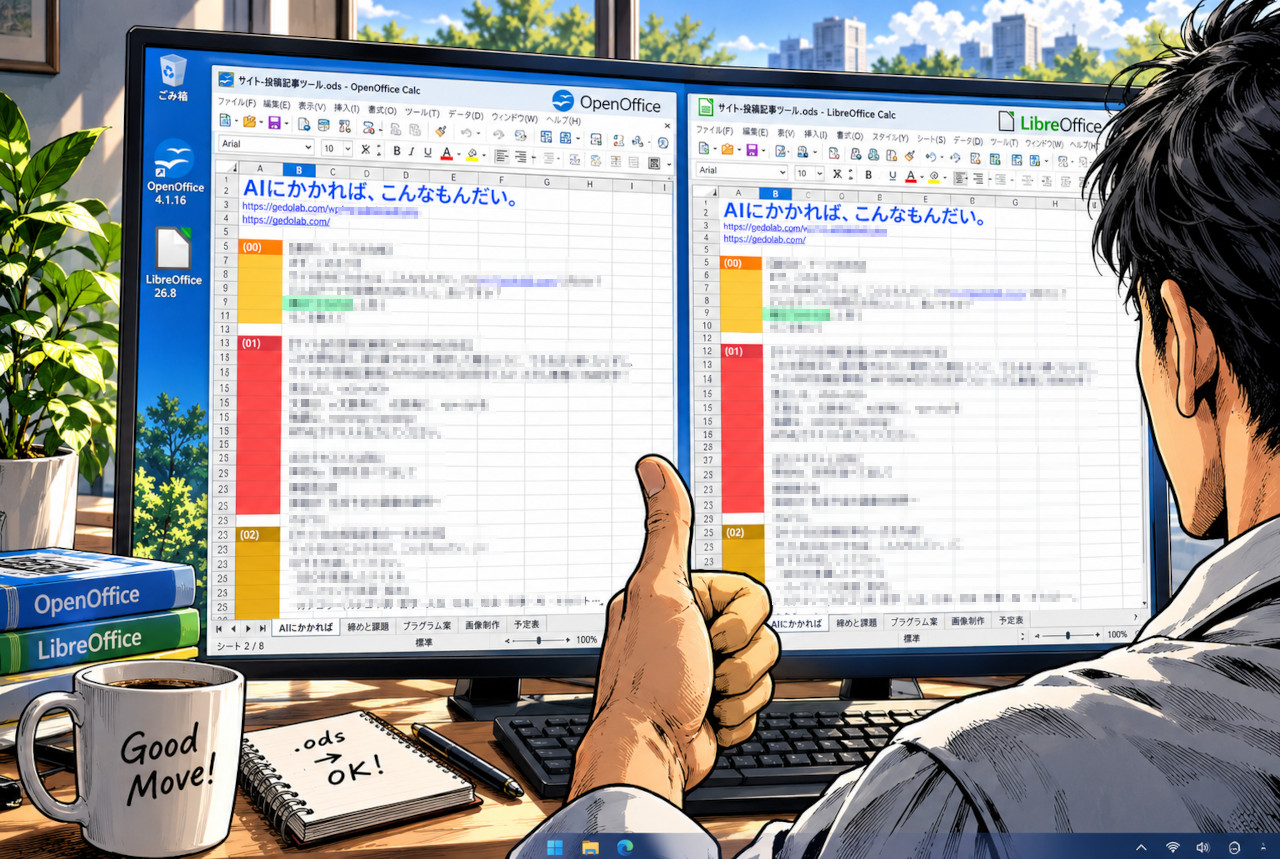 Illustration based on the actual ODS file used for this test. Individual documents may behave differently depending on formulas, macros, fonts and formatting.
Sometimes replacing software is more sensible than repairing it forever
PC troubleshooting has a strange habit of turning into a hobby of its own.
You reset a profile. Change an IME setting. Reinstall the program. Disable something else. Search another forum. Maybe you finally fix it—and maybe six months later you are doing the same thing again.
There is nothing wrong with troubleshooting OpenOffice if you like it and it works for your documents.
But when a free alternative officially supports Windows 11, uses ODS and ODT natively, and also handles DOCX and XLSX, there is a point where continuing to repair the old environment becomes harder to justify.
Microsoft Office still has a clear place. If your workplace depends on exact Microsoft compatibility, advanced Excel features, complex VBA automation or documents that must render identically across an organization, using Microsoft Office is often the safer choice.
For everyone else, the more interesting question may be the opposite:
Do you actually need to pay for Office—or have you simply been assuming that you do?
Editor’s Note
I have never felt much attachment to the idea that office software has to be expensive. For the way I use it, a free compatible suite is enough most of the time, including ordinary formulas and the small bits of macro work I actually need. I also send a modest donation now and then to software I genuinely keep using. I rather like that arrangement: pay because the tool proved useful, not because a subscription meter says it is Tuesday.
References
-
Apache OpenOffice, “Announcing Apache OpenOffice 4.1.16”
https://openoffice.apache.org/blog/announcing-apache-openoffice-4-1-16 -
LibreOffice, “System Requirements”
https://www.libreoffice.org/get-help/system-requirements/ -
LibreOffice, “What is LibreOffice?”
https://www.libreoffice.org/discover/what-is-libreoffice/ -
LibreOffice Help, “Using Microsoft Office and LibreOffice”
https://help.libreoffice.org/latest/en-US/text/shared/guide/ms_user.html -
LibreOffice Help, “Working with VBA Macros”
https://help.libreoffice.org/latest/en-US/text/sbasic/shared/vbasupport.html