

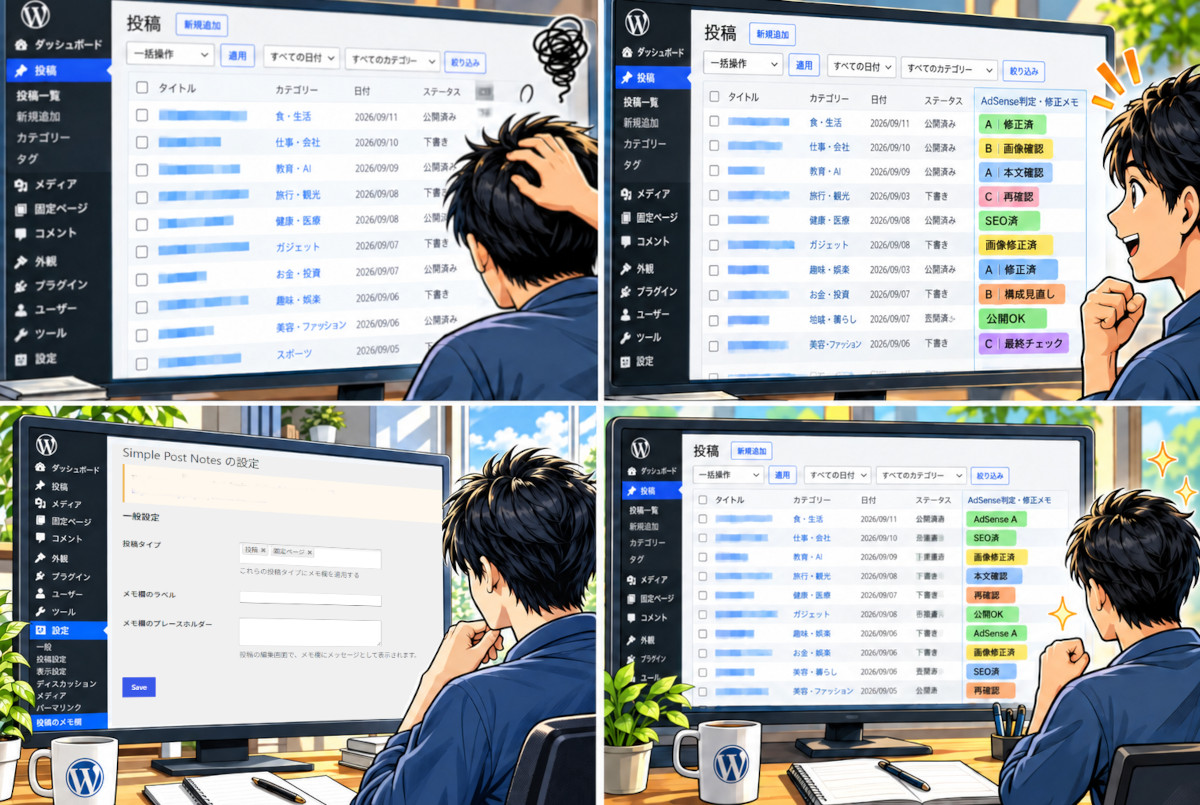
When a WordPress site has only ten posts, it is still possible to keep track of things in your head: “I already fixed this one,” “That one still needs work.” Once the archive grows to 50 or 100 posts, that approach starts to fall apart surprisingly fast.
WordPress already tells you whether a post is published, scheduled, or still a draft. What it does not tell you is whether you have already reviewed the text, replaced an image, checked the article for AdSense-related issues, or completed some other bit of editorial maintenance.
That is where the WordPress plugin Simple Post Notes becomes useful.
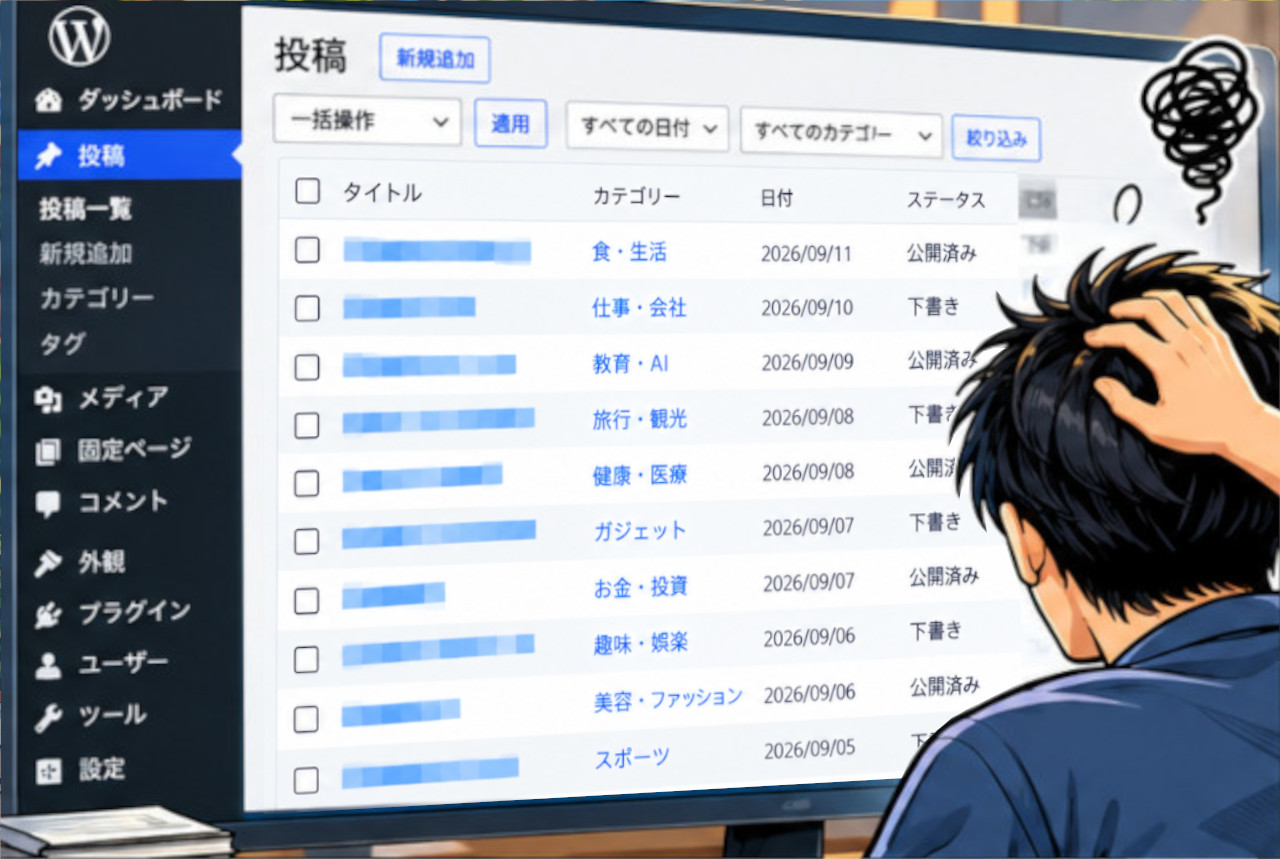 AI-generated illustration showing the editorial-management problem described in this article. The interface is illustrative rather than an exact WordPress screenshot.
Give Each Post Its Own Editorial Note
Simple Post Notes adds a note field to posts, pages, and supported custom post types.
The useful part is not just the extra field on the editing screen. The note can also appear as its own column in the WordPress posts list, which means you can check an article’s status without opening the article itself.
For example, I can use short internal notes such as:
A | No changes needed
A | Copy revised
B | Image needs checking
SEO needs another look
That is enough to answer the annoying little question that appears after a site gets large: “Wait, did I already fix this article?”
The letters A and B are simply my own editorial shorthand. They are not ratings assigned by Google AdSense or any official Google review system. The point is that Simple Post Notes lets you invent a notation system that makes sense for your own workflow.
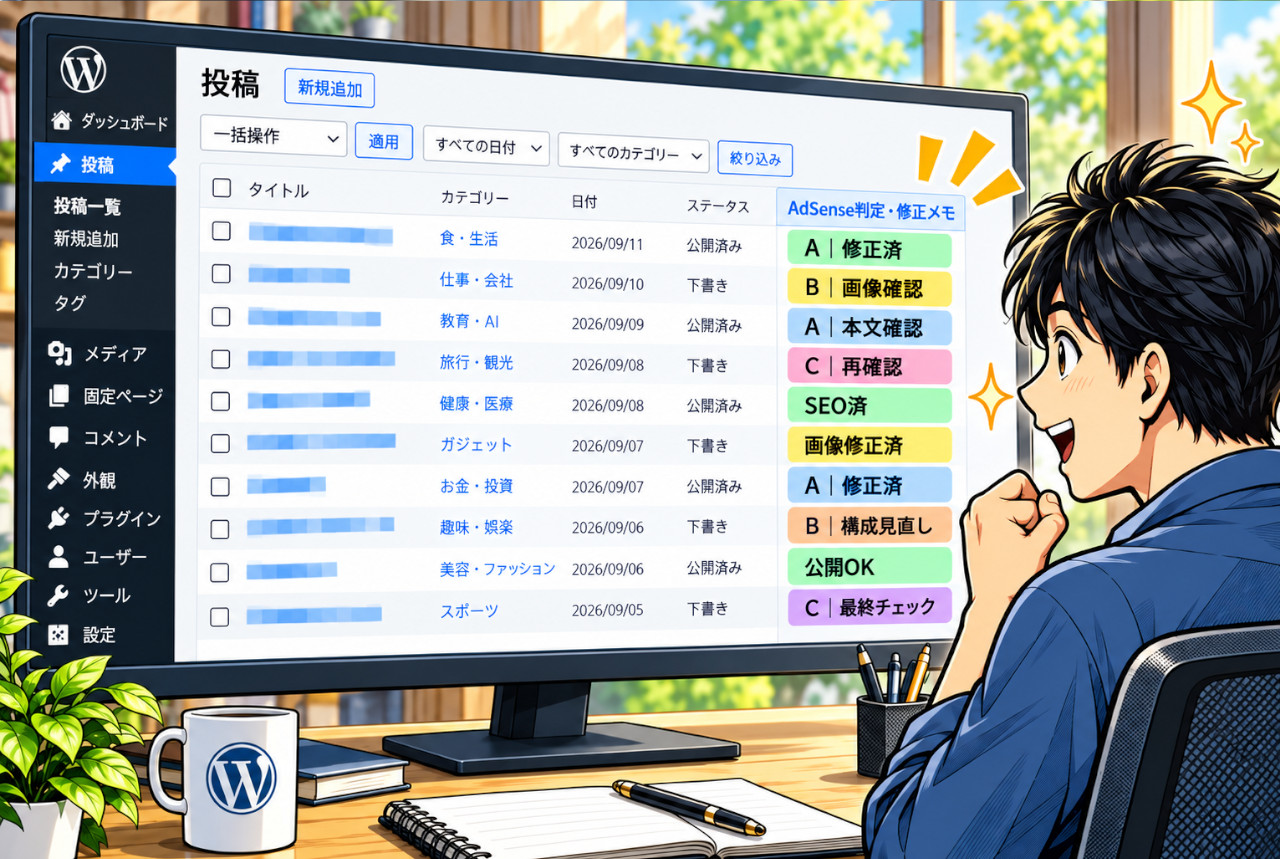 Illustrative example of an editorial workflow. Simple Post Notes does not automatically color-code notes as shown here.
Where to Configure It After Installation
Installation works like most WordPress plugins. Open Plugins → Add New, search for Simple Post Notes, install it, and activate it.
After activation, open the plugin’s settings page under WordPress Settings.
There you can choose which post types should use notes. For an ordinary blog, enabling Posts is usually enough. If you also want notes on static pages, Pages can be included as well.
One small feature is more useful than it first appears: you can change the label used for the note field.
A generic label such as “Note” does not tell me much, so on this site I changed it to something closer to “AdSense Review / Revision Notes.” The label itself becomes a reminder of what I am supposed to record there.
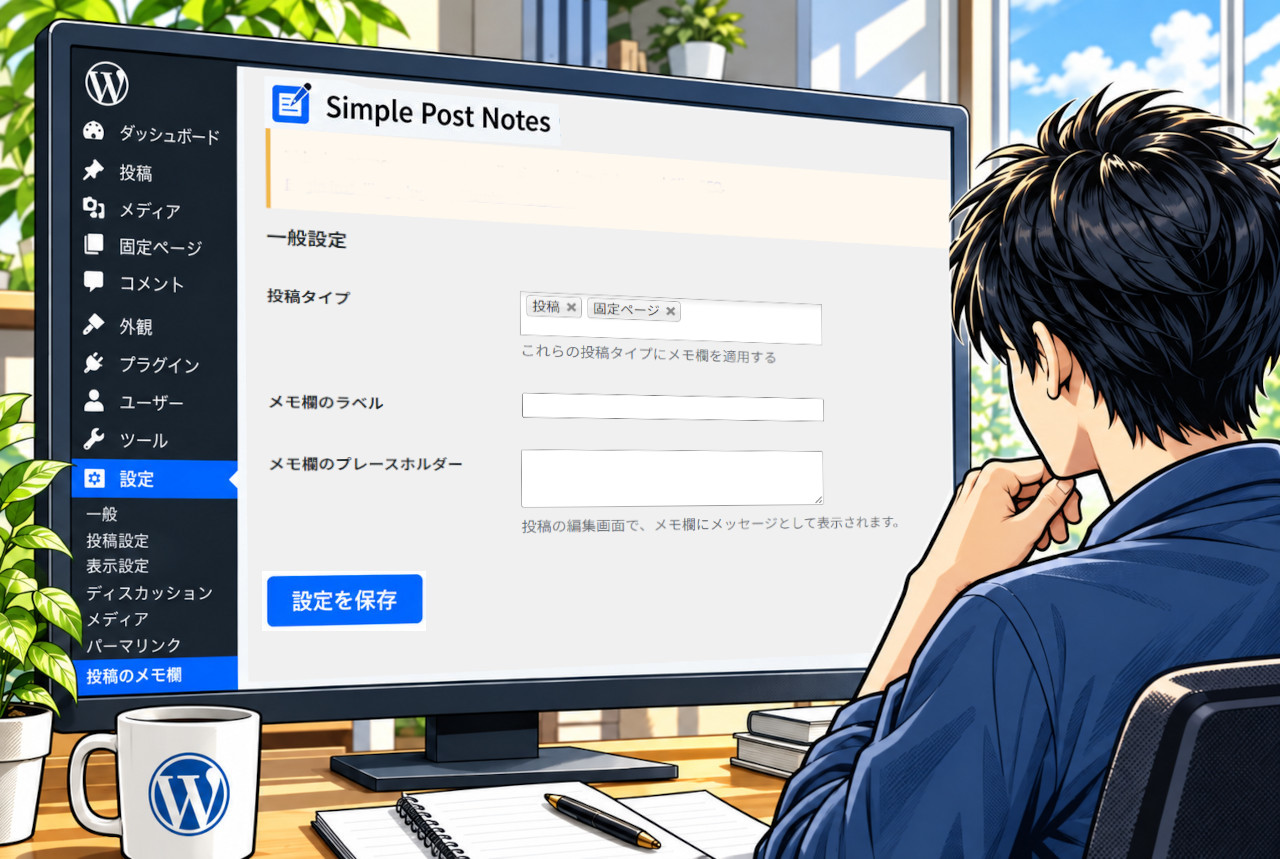 AI-generated illustration based on the plugin settings screen. Exact wording and layout may vary depending on the WordPress language and environment.
It Also Works as an AdSense-Related Review Log
The part I like is that the note does not have to describe the article itself. It can describe the article’s current editorial state.
For example, after reviewing an article with advertising quality in mind, I might leave notes such as:
A | No issue found | Checked Sep. 5
A | Revised | Checked Sep. 5
B | Wording needs another review
Again, these are private labels I created for my own workflow, not Google ratings.
The same field can track SEO revisions, broken-link checks, image replacements, outdated information, or anything else that tends to disappear from memory once a site has accumulated enough articles.
So despite the way I use it here, this is less an “AdSense plugin” than a very small editorial-maintenance log attached to each post.
 Illustrative example of a possible workflow. Simple Post Notes does not automatically apply the colored labels shown in the image.
A Tiny Feature That Matters More as the Site Grows
Simple Post Notes also supports Quick Edit and Bulk Edit, which makes it a good fit for people who already manage most of their site from the WordPress posts screen.
The plugin also provides a shortcode for intentionally displaying a note on the public-facing site. If the notes are only for internal editorial work, however, there is no reason to place that shortcode in the article itself.
There is nothing flashy about any of this. In fact, that may be why the feature is useful.
Writing an article is only half the job once a site gets large. Remembering what happened to that article three months later becomes another job entirely. A tiny private note field is sometimes enough to stop that part of WordPress management from turning into archaeology.
Compatibility note: As of September 18, 2026, WordPress.org lists Simple Post Notes version 1.8.1 as tested through WordPress 6.8.9, while also warning that the plugin has not been tested with the latest three major WordPress releases. Check compatibility with your own environment before installing.
Editor’s Note
Private notes and little check marks are the sort of feature nobody puts on a flashy product page, but they become incredibly useful once a site gets big. I have always liked these backstage tools more than the glamorous stuff. It reminds me of the old days of scribbling red-pen notes in the margins of a manuscript: not elegant, perhaps, but wonderfully practical.
References
- WordPress.org — Simple Post Notes
Official plugin page covering the note field, sortable posts-table column, Quick/Bulk Edit support, shortcode, custom post types, current version, and compatibility information. - WordPress.org Documentation — Manage Plugins
Official WordPress documentation covering plugin search, installation, activation, compatibility checks, updates, and plugin management.