

What is my Windows 11 PC doing when I’m not looking? Which programs are running in the background, and where are they connecting? Most of us rarely ask these questions—until we start wondering whether something suspicious could be hiding on our computer.
Large companies have dedicated security monitoring systems. A typical home PC doesn’t. But could an ordinary Windows user build something approaching that level of visibility with a little help from AI? That question led me to start developing ZATSU GUARD, an experimental security monitoring tool.
My first experiment showed that Windows 11 could record which program connected to which address, and when. But seeing a network connection is not the same as knowing whether it’s suspicious. Here’s what I found during a hands-on test on November 9, 2026.
Microsoft Defender Wasn’t Running. So What Was Protecting My PC?
Before installing any additional monitoring software, I checked the security protection already running on my Windows 11 computer.
The first result was hardly reassuring. PowerShell’s Get-MpComputerStatus command reported that Microsoft Defender Antivirus was “Not running.” Its antivirus-enabled status was also False.
For a moment, it looked as though the machine might have no antivirus protection at all.
Then I opened the Security providers section of Windows Security. McAfee was listed as the active antivirus provider. Defender wasn’t the primary antivirus because McAfee was handling that role.
Microsoft’s own documentation explains why this can happen. When a compatible third-party antivirus product is installed and operating as the primary protection, Microsoft Defender Antivirus may automatically enter a disabled or non-primary operating state, depending on the system configuration.
A disabled Defender service does not automatically mean an unprotected computer. Still, the fact that McAfee appeared as active didn’t prove that its signatures were up to date or that it could detect every threat. Those are separate questions.

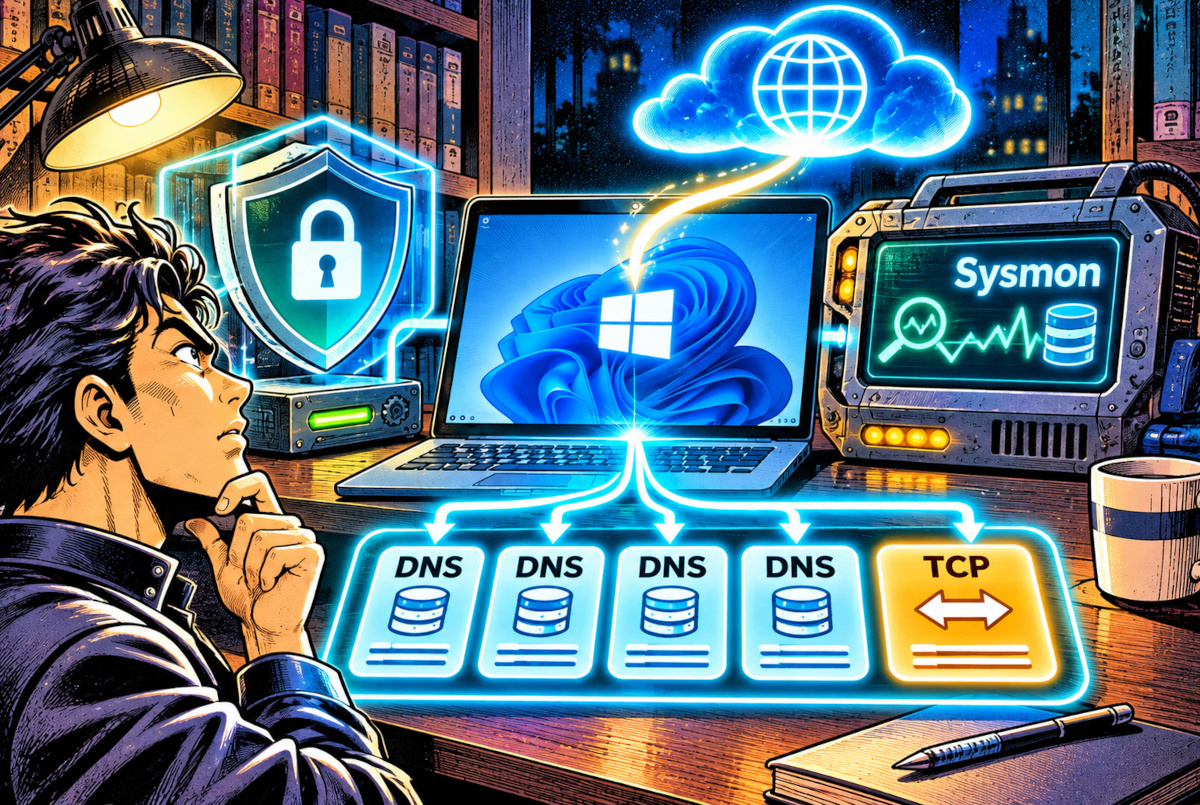
Conceptual illustration of the roles of McAfee, Microsoft Defender, and Sysmon. McAfee was shown as the active antivirus provider on the test PC, but that does not guarantee complete protection. The monitoring equipment shown is symbolic, not an actual device.
Windows Gained a Built-In Flight Recorder in 2026
My next step was to enable Sysmon, Microsoft’s system monitoring tool. It records events such as program launches, process termination, and selected network activity in the Windows Event Log.
Sysmon had existed as a separate Microsoft Sysinternals tool for years. Starting in February 2026, however, Microsoft also made it available as a built-in optional feature for supported Windows 11 systems. It isn’t necessarily active by default.
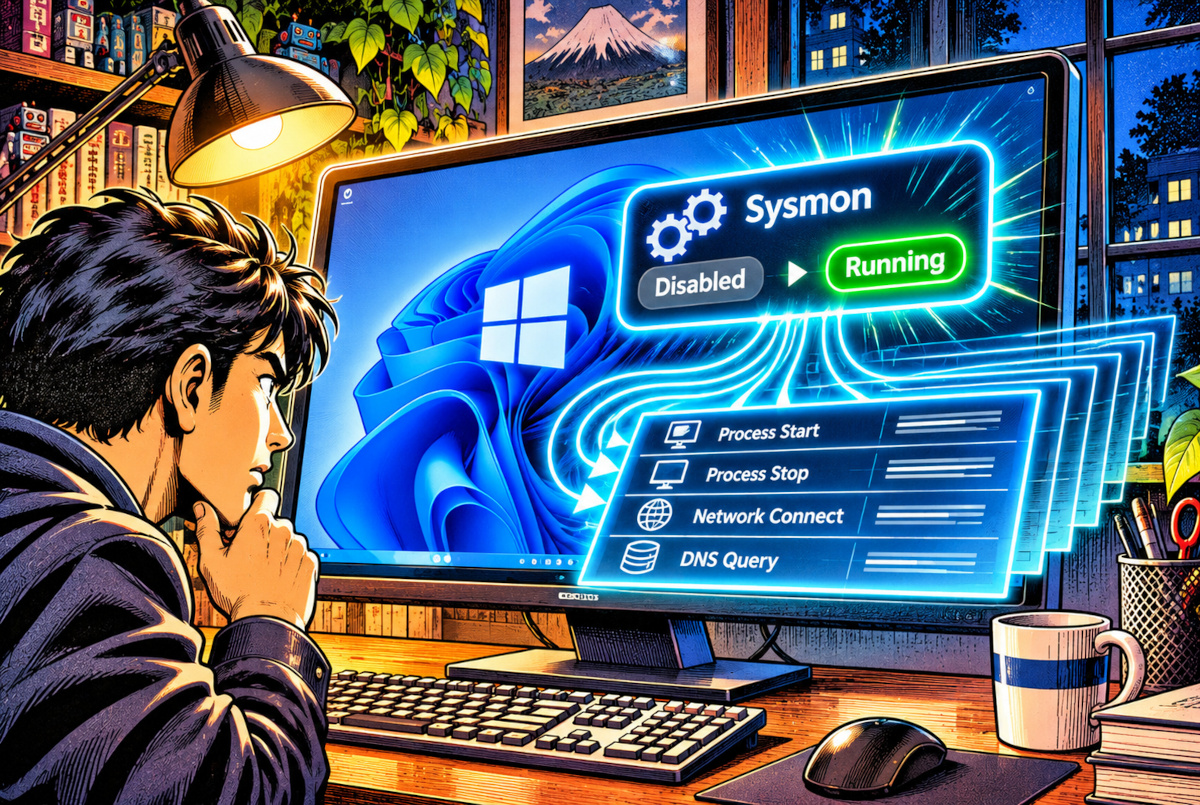
On my computer, its initial feature status was Disabled.
Using PowerShell with administrator privileges, I enabled the optional feature and installed Sysmon. The Sysmon service then showed a status of Running.
I also applied an XML monitoring configuration to record selected network connections and DNS queries from programs such as PowerShell. The sysmon -c command confirmed that network connection and DNS query logging were enabled.
One important distinction: Sysmon is a recorder, not an antivirus engine. It collects evidence of activity, but it doesn’t automatically decide which program is malicious or remove infections. That requires additional analysis and security controls.
One Connection Test to Microsoft. Why Did I Get Four DNS Events?
Now for the part I really wanted to test: would Sysmon record an actual connection that I deliberately initiated?
On November 9, 2026, I ran this PowerShell command:
Test-NetConnection www.microsoft.com -Port 443
The output included TcpTestSucceeded : True, confirming that the TCP connection test to port 443 had succeeded.
Next, I examined the Sysmon event log. Sure enough, there was a network connection record associated with powershell.exe.
| Recorded item | What I observed on the test PC |
|---|---|
| Executable | powershell.exe |
| Destination | An IP address serving the Microsoft website |
| Connection | TCP, port 443 |
| Event ID 3 | Network connection event |
| Event ID 22 | DNS query events for www.microsoft.com |
But something else caught my attention. The log contained four DNS events associated with the same connection test.
All four referred to www.microsoft.com and shared the same ProcessGuid, linking them to the same PowerShell process.
Four DNS events from one test? That sounds more dramatic than it actually is.
The number doesn’t mean that PowerShell launched four attacks, made four successful external connections, or transmitted data four times. Sysmon Event ID 22 records DNS query activity, while Event ID 3 records network connection activity. They’re different kinds of evidence, and multiple DNS records can be associated with the same operation.
The connection record also identified the destination through an Akamai-hosted address associated with the Microsoft website. In other words, the test revealed the infrastructure involved in reaching the site, not a mysterious unauthorized connection.
Separately, I found multiple records of OneDrive communicating with external IP addresses. Those entries were associated with OneDrive’s own executable rather than the PowerShell process I had used for testing.
That was the real result: I could distinguish a connection I had deliberately initiated from network activity generated by another program in the background. Both left identifiable traces in the event log.
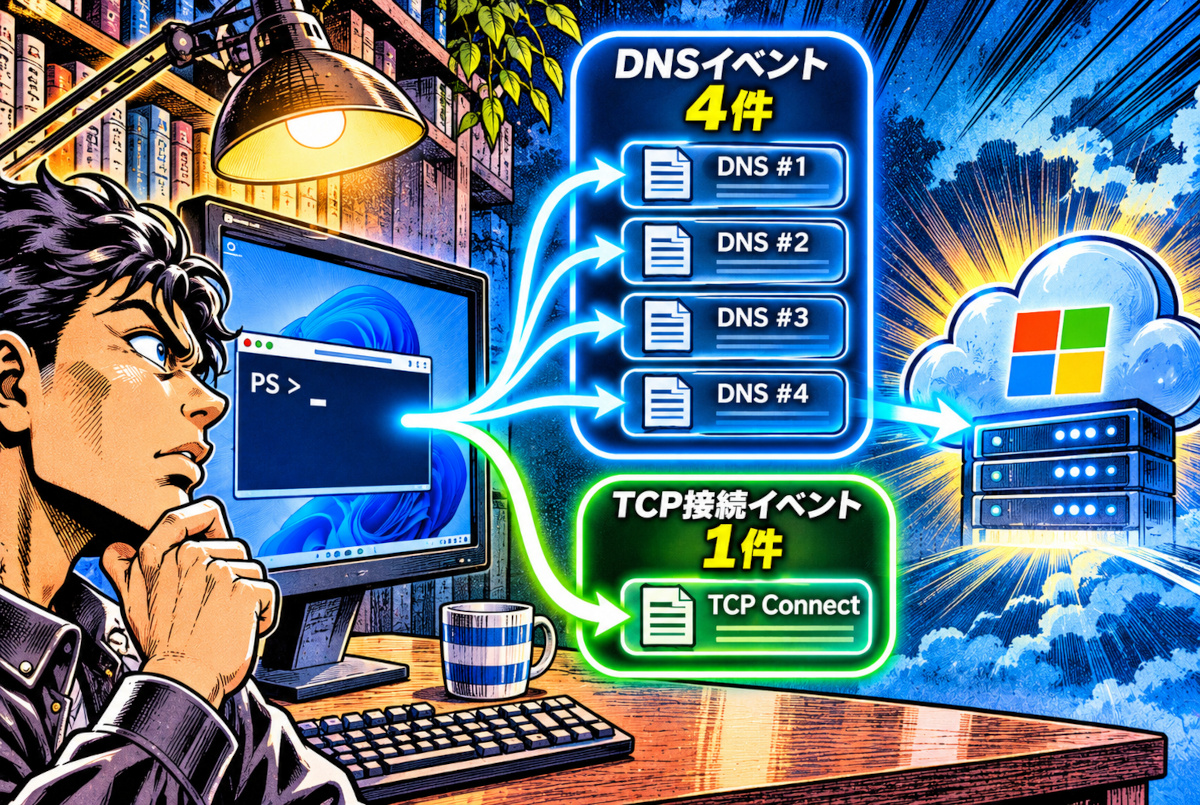
Based on the November 9, 2026 test. Four DNS events and one TCP connection event were observed for the same PowerShell process. The arrows group related records; they do not represent literal packet routes, four separate connections, or evidence of an attack. The illustrated server is symbolic.
If I Can See Network Connections, Can I Spot a Data Thief?
Unfortunately, it isn’t that simple.
The records included executable names, destination IP addresses, port numbers, and timestamps. That’s useful information, but it doesn’t reveal the actual contents of the data being transferred.
There’s another limitation: Sysmon only records the events allowed by its configuration. I had deliberately selected particular programs and activities for monitoring. The absence of an event therefore doesn’t prove that no other network activity occurred.
And then I discovered a rather inconvenient detail about storage.
On the test PC, the maximum size of the Sysmon event log was set to 64 MB, with its retention mode configured as Circular.
That means new events can overwrite the oldest ones when the log reaches its size limit. The 64 MB limit was the setting observed on this particular computer, not a fixed limit for every Windows 11 PC.
Suppose a suspicious program remains active for several days. Even if Sysmon records its activity, the oldest evidence might be overwritten before anyone gets around to investigating it.
Monitoring continuously and preserving a continuous history are two different problems. A security log that constantly records new activity can still lose the earlier evidence you need.

Conceptual diagram of circular event-log storage. On this test PC, Sysmon’s event log was limited to 64 MB. Once full, newer events can replace the oldest ones. The machine shown is imaginary, and 64 MB is the observed configuration, not a universal Windows limit.
Could a Home PC Really Have Professional-Style Monitoring?
By the end of this initial experiment, I had confirmed something useful: I could keep McAfee as the existing antivirus provider while using Sysmon to collect detailed records of selected Windows activity and network connections.
AI helped me work through the configuration, PowerShell commands, troubleshooting, and early development of ZATSU GUARD. But the events themselves were collected by Sysmon—not by AI. No autonomous AI malware detector had been demonstrated.
An ordinary Windows 11 PC can produce some of the same categories of detailed event data used in professional security investigations. That’s a meaningful starting point, but it isn’t equivalent to having a complete enterprise security monitoring system.
The harder work comes afterward: preserving the records, connecting events from the same process, distinguishing unusual behavior from harmless background activity, and reducing both missed threats and false alarms.
Subsequent ZATSU GUARD development moved into chronological event analysis, linking related program behavior, and longer-term history collection. The results—and the problems that emerged—will be examined in later installments.
Editor’s Note
The first surprise wasn’t anything resembling a hacker attack. It was seeing “Not running” beside Microsoft Defender and wondering whether my own computer had somehow been left unprotected. Then I discovered that McAfee was doing the job. Even finding out who’s guarding the front door turned out to be less obvious than expected.
And getting Sysmon working wasn’t entirely smooth. My initial attempt from PowerShell without administrator privileges produced an error. The supposedly simple first step of looking under Windows’ hood already required a little troubleshooting.
Still, seeing my deliberate connection to Microsoft’s website appear in the log was genuinely satisfying. I’d made the connection, and now I could see its footprints. The operating system had been keeping a record of activity I normally never notice.
Of course, finding footprints doesn’t mean you’ve found a burglar. Worse, the recording system has a storage limit: keep collecting new evidence and the oldest evidence can disappear. It’s rather like installing a security camera and then discovering that the recording automatically tapes over yesterday’s footage.
With AI helping, even a non-specialist can start building a monitoring system. But the interesting—and difficult—part is what comes next. Can my homemade tool tell the difference between something genuinely suspicious and perfectly ordinary Windows behavior? That’s the real test for ZATSU GUARD.
Terms That May Need a Quick Explanation
- Sysmon (System Monitor)
- A Microsoft tool that records selected Windows activities, including process execution and network connections, in the Windows Event Log. Its coverage depends on configuration. Sysmon does not independently diagnose or remove malware.
- ProcessGuid
- A unique identifier assigned to a process instance. It helps investigators connect records such as process creation, network connections, and DNS queries to the same execution of a program.
Antivirus: Can AI Hackers Target Your PC? - Ongoing Series
Can AI-driven cyberattacks threaten ordinary PCs? We examine real-world attacks, information-stealing malware, and Windows 11 monitoring experiments while developing our own security tool, ZATSU GUARD. This is an ongoing investigation.
- Part 1: AI-Powered Attacks Hit Companies. Could My Home PC Be Next? (Part 1)
- Part 2: What’s Worth Stealing From an Ordinary PC? The “Already Logged In” Trap (Part 2)
- Part 3: One Connection Test, Four DNS Events? What Sysmon Revealed About My Windows 11 PC (Part 3)
- Part 4: English edition Coming soon
- Part 5: English edition Coming soon
- Part 6: English edition Coming soon
- Part 7: English edition Coming soon
- Part 8: English edition Coming soon
References
- Microsoft Learn | Enable and Configure Sysmon in Windows (Japanese-language Microsoft documentation covering installation, configuration, and event collection)
- Microsoft Learn | Sysmon in Windows (Built-in optional feature introduced in February 2026 and command-line options)
- Microsoft Learn | Understanding Sysmon Events (Process events, network connections, DNS queries, and interpretation limits)
- Microsoft Learn | Understanding Sysmon Configuration Files (Event selection and inclusion/exclusion rules)
- Microsoft Learn | Microsoft Defender Antivirus in Windows (Antivirus operating states and how to verify the active security provider)
- Microsoft Learn | Test-NetConnection (TCP connectivity testing and result interpretation)
- Microsoft Learn | EventLogMode (How Circular logging overwrites older events when capacity is reached)
- Editor’s original Windows 11 test records, November 9, 2026 (McAfee and Microsoft Defender status, Sysmon installation, connectivity test, and event-log inspection; privately retained by the site editor)